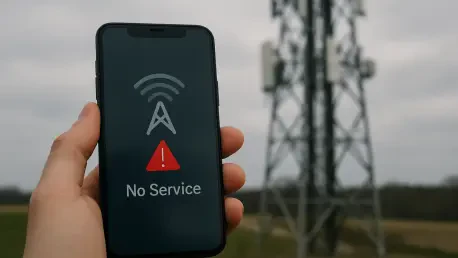

The modern smartphone connects us to the world, but that connection is surprisingly fragile, often severed by the five simple words that can bring any activity to a grinding halt: “mobile network not available.” This error message is more than a minor inconvenience; it’s a digital dead end, indicating your device has failed to establish a handshake with a cellular network. While it’s easy to blame the nearest cell tower, the root cause is often far more complex, ranging from a simple software glitch on your device to a configuration issue buried deep within your carrier’s system. Availability studies often boast near-perfect 4G and 5G coverage in urban centers, yet real-world experience is filled with indoor dead zones, rural gaps, and crippling congestion during major events. Furthermore, as the Federal Communications Commission (FCC) notes, power outages remain a primary driver of wireless service disruptions during disasters, rendering even a perfectly functioning device useless. Fortunately, a systematic approach can resolve most of these connectivity conundrums without a trip to a service center.
1. Reset Your Phone’s Radio Connection
The most immediate and often effective solution involves forcing the phone’s radio to start over. This can be accomplished by activating Airplane Mode for approximately 30 seconds before deactivating it. This action compels the device’s modem to completely drop its current, failed attempt to connect to the network and initiate a fresh “attach” request. It’s the digital equivalent of hanging up and dialing again, clearing any temporary glitches in the communication handshake between the phone and the cell tower. For Android users, an additional step of navigating to settings and toggling the Mobile Data switch off and on can specifically reset the data connection component. This is particularly useful if calls are working but internet access is not. In devices equipped with dual SIMs, whether physical or eSIMs, it is crucial to verify that the correct line is selected for both calls and data within the settings. A common oversight is having data assigned to a secondary SIM that may have a poor signal or no active data plan, leading to a misleading network error.
2. Restart Your Phone and Check Your SIM
When a simple radio reset doesn’t resolve the issue, a full system reboot is the next logical step, as it addresses potentially deeper software conflicts by clearing stuck processes in the device’s memory and fully restarting the modem. For phones with a physical SIM card, this provides an opportunity for a physical check. After powering the device off completely, eject the SIM tray and carefully inspect the card. Gently wiping the gold contacts with a soft, dry, lint-free cloth can remove any dust or oils that might be interfering with the connection. It is also important to ensure the SIM card is seated correctly in the tray, as a slight misalignment can break the electrical contact required for the network to recognize the subscriber. For users with an eSIM, the process involves a digital re-provisioning. This is typically done by removing the eSIM profile from the device’s network settings and then adding it back by re-scanning the original QR code provided by the carrier or logging into a carrier app. This procedure forces a new authentication of your credentials on the network and can resolve silent activation issues.
3. Confirm Network Availability in Your Area
Before assuming the problem lies with your device, it is essential to rule out a broader network issue. The most direct method is to check your carrier’s official website or social media channels, which often feature a network status page or post alerts about known service disruptions. Another simple yet effective technique is to ask someone nearby who uses the same carrier if their service is working. It is important to remember that the signal bars displayed on a phone are not always a reliable indicator of a successful network registration. In crowded venues, during rush hour in dense urban corridors, or at major public events, the local cell towers can become congested. Your phone might show a strong signal, but the network is too overloaded to grant a new connection, resulting in a “network not available” error. For those traveling internationally, verify that roaming is enabled in the phone’s settings and that the mobile plan includes coverage for the current location. During severe weather or power failures, carriers prioritize restoring service, but intermittent connectivity is common as repair crews work to bring towers back online.
4. Manually Select Your Network and Preferred Type
Modern smartphones are designed to automatically select the best available network, but this process can sometimes fail. By manually intervening, you can often force a successful connection. This is done by navigating to the Mobile Network settings on your device and disabling the automatic network selection feature. The phone will then scan for all available networks in the area. From the resulting list, select your own carrier. If the connection is successful, you can then switch back to automatic selection. Another powerful adjustment is changing the preferred network type. In areas with spotty or developing 5G coverage, a phone might stubbornly try to hold onto a weak 5G signal rather than switching to a stronger, more stable LTE/4G connection. Manually forcing the phone to use only LTE/4G for a period can provide a much more reliable link. Conversely, users with older, 3G-only hardware may find themselves without service in regions where carriers are phasing out legacy networks. In these cases, the device must support Voice over LTE (VoLTE) to make calls over the 4G network, often requiring a new SIM card and an updated plan.
5. Update Your Phone’s Software and Carrier Settings
Keeping a device’s software current is a critical aspect of maintaining stable network connectivity. System updates, often released monthly by manufacturers, go beyond adding new features; they frequently contain crucial updates to the modem firmware. This firmware is the low-level software that controls the phone’s radio hardware, and updates can fix bugs, improve signal reception, and enhance stability on new network technologies. Similarly, carriers periodically push out their own updates, known as carrier settings updates. These small files configure the phone to work optimally with the carrier’s specific network infrastructure, affecting everything from call quality to data speeds and VoLTE functionality. If the phone prompts for a carrier settings update, especially after a reboot, it should be installed immediately. Furthermore, ensuring that core system applications like the phone dialer and the Carrier Services app (on Android) are up-to-date is also important, as these components manage critical functions like network registration and emergency call routing. Occasionally, clearing the cache of these apps can resolve issues caused by stale or corrupt data.
6. Reset All Network Settings and Confirm Your APN
When more targeted solutions fail, a more comprehensive reset of the device’s network configurations may be necessary. The “Reset Network Settings” option, available on both iOS and Android, acts as a clean slate for all connectivity-related software. This action erases all saved Wi-Fi networks and passwords, paired Bluetooth devices, and cellular settings, but it does not affect any personal data like photos, contacts, or apps. After the reset, the device will restart and re-fetch the default mobile settings directly from the carrier, which can resolve deep-seated configuration errors. Following this reset, it is wise to verify the Access Point Name (APN) settings. The APN serves as the gateway between your carrier’s cellular network and the public internet. While these settings are usually configured automatically, an incorrect or missing APN can disrupt mobile data and MMS messaging, even while calls and basic texts continue to function. If data services are not working, you can find the APN settings under the Cellular or Mobile Network menu and compare them to the correct values provided on your carrier’s support website.
7. Ask Your Carrier to Refresh Your Service
If you have exhausted all device-side troubleshooting steps, the problem may originate from your carrier’s end. Contacting customer support is the final and often definitive step. When you call, be prepared to explain the issue and the steps you have already taken. You can request that the support representative perform a “reprovision” of your line. This process involves the carrier sending a fresh set of service instructions to your SIM or eSIM, effectively reactivating it on the network and clearing any errors that may have occurred on their backend systems. They can also perform a location update to ensure your device is registering with the correct towers. It is also important to have them verify that your line is not inadvertently blocked or suspended and that your phone’s unique IMEI is correctly registered and enabled on their network. This is particularly relevant if you recently ported your number from another provider, as lines can sometimes get stuck in a transitional state, or if your phone was recently repaired, which can sometimes result in an IMEI mismatch.
A Path to Reconnection
The troubleshooting journey for a mobile network error began with the simplest of software toggles and progressed through a systematic series of checks involving the device’s hardware, software, and network settings. This layered approach provided a clear diagnostic path, empowering the user to methodically rule out common issues before escalating the problem. Each step, from the quick reset of the phone’s radio to the more involved process of resetting all network configurations, addressed a different potential point of failure in the complex chain of communication between the handset and the carrier’s infrastructure. When these self-service solutions proved insufficient, the final step pointed toward direct collaboration with the service provider to resolve account-level or network-side provisioning errors. If, after all these software and carrier-side interventions, the issue persisted—especially if another phone worked flawlessly with the same SIM card—the evidence then pointed toward a potential hardware malfunction within the device itself, such as a damaged internal antenna or moisture ingress, signaling that a professional diagnostic at a service center was the necessary final recourse.