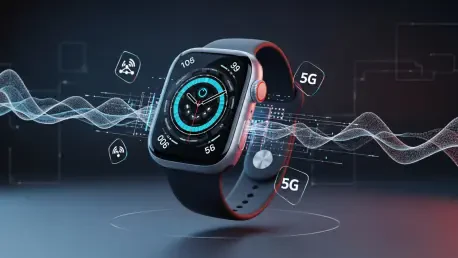

Starting out on a run without a smartphone represents the ultimate promise of modern wearable technology, yet this freedom quickly evaporates when an Apple Watch Series 11 fails to connect to its cellular network. Since the release of the Series 11 in late 2025, users have come to rely on the seamless transition between Bluetooth and LTE, making any interruption in service particularly disruptive to daily routines. When the green signal bars disappear or the status remains stuck on “disconnected,” it is often due to a breakdown in the complex handshake between the device’s internal eSIM and the carrier’s network towers. These issues typically manifest as missed notifications, failed calls, or an inability to stream music without the presence of a paired iPhone nearby. Understanding the underlying mechanics of watchOS 26 and the way it manages carrier data is the first step toward reclaiming the untethered convenience that defines the flagship Apple Watch experience. This guide examines the specific protocols required to restore reliable connectivity.
1. Verify Hardware and Plan Compatibility
Before pursuing complex software troubleshooting, it is essential to confirm that the hardware possesses the necessary components for independent cellular connectivity. The Apple Watch Series 11 is produced in two distinct configurations, and only the GPS + Cellular model contains the integrated eSIM and specialized antenna array required for carrier access. Owners can quickly identify the cellular variant by looking for a distinctive red ring or a solid red circle on the Digital Crown, which has remained the primary visual indicator for cellular models. If this marking is absent, the device is a GPS-only version that relies entirely on a Bluetooth or Wi-Fi link to a companion iPhone for all data-related tasks. Attempting to activate a cellular plan on a model that lacks the physical modem will prove impossible, as the necessary circuitry to communicate with LTE or 5G towers is physically missing from the chassis of the standard GPS configuration.
Even with the correct hardware, the service remains dependent on a compatible cellular plan that supports wearable devices through a “One Number” system. Carriers must specifically provision the account to allow the iPhone and the Apple Watch to share the same mobile directory number, ensuring that calls reach both devices simultaneously regardless of their proximity to each other. In 2026, many pre-paid providers or discount virtual network operators still lack the infrastructure to support the Apple Watch eSIM, necessitating a subscription from a major carrier. Furthermore, the iPhone and the watch must be registered on the same carrier network to facilitate the initial setup and subsequent data handovers. If an account has recently undergone changes, such as a plan upgrade or a billing cycle reset, the carrier may have temporarily suspended the wearable’s data access. Verifying account status with a service representative often reveals hidden administrative blocks that prevent the watch from authenticating.
2. Toggle Cellular Data Off and On
A frequent cause of connectivity failure involves the watch becoming stuck while attempting to switch between different radio states as the user moves out of iPhone range. This software “hiccup” can often be resolved by manually forcing the cellular modem to refresh its search for available carrier signals. To initiate this process, a user must open the Control Center by pressing the side button, which has replaced the swipe-up gesture in the latest iterations of watchOS 26. Inside this menu, the cellular icon—depicted as a transmission tower—serves as the primary toggle for the internal radio. Tapping this icon to turn the cellular service off, waiting for several seconds to allow the modem to fully power down, and then tapping it again to re-enable it can trigger a fresh handshake with the local cell tower. This sequence is particularly effective when moving between different network zones or emerging from areas with significant signal interference, such as large concrete buildings.
Monitoring the visual feedback from the Control Center provides immediate insight into whether the manual toggle has successfully resolved the underlying connection issue. When the Apple Watch is actively utilizing its cellular plan, the transmission icon will glow green, and the top-left corner of the screen will display signal strength dots alongside indicators such as “LTE” or “5G.” If the icon remains white or transparent, it signifies that the watch is still prioritizing a Bluetooth connection with the iPhone or an available Wi-Fi network instead of its own cellular radio. This behavior is normal when the iPhone is nearby, as the watch intelligently conserves battery by disabling high-power cellular data whenever a low-energy bridge is accessible. However, if the watch fails to transition to the green state after the iPhone is powered off or moved several hundred feet away, the manual toggle serves as a necessary intervention to wake the dormant cellular hardware from its energy-saving standby mode.
3. Cycle Airplane Mode on Both Units
Since the Apple Watch Series 11 maintains a constant, complex dialogue with its paired iPhone, a synchronization error in the communication protocol can occasionally disable the cellular data path. Cycling Airplane Mode on both the watch and the phone forces all wireless radios, including Bluetooth, Wi-Fi, and cellular, to terminate their current sessions and restart from a clean state. On the iPhone, the toggle is found within the Settings app or the Control Center, and it should be activated first to ensure the primary device stops transmitting. Following this, the user should enable Airplane Mode on the Apple Watch via its own Control Center. This comprehensive shutdown of the wireless ecosystem prevents the devices from attempting to reconnect to “stale” or corrupted sessions that may be preventing the cellular modem from initializing. By clearing the active radio cache on both ends, the system prepares itself for a complete re-negotiation of all wireless credentials once the modes are disabled.
After allowing both devices to sit in the silent Airplane Mode state for approximately fifteen to twenty seconds, the radios should be reactivated in sequence to restore the link. The user should first disable the mode on the iPhone, allowing it to re-establish its primary connection to the carrier network and find a stable 5G or LTE signal. Once the iPhone is back online, disabling Airplane Mode on the Apple Watch allows the wearable to scan for its companion device while simultaneously checking for its own independent cellular authorization. This “double-refresh” technique is a staple troubleshooting method for modern electronics because it clears interference patterns and resets the internal software drivers responsible for managing the handoff between local and wide-area networks. If the cellular icon on the watch returns to its active green state following this procedure, it indicates that the previous failure was likely a temporary timing mismatch between the two devices’ internal communication chips.
4. Close the Companion App and Reboot
The dedicated Watch app on the iPhone serves as the gateway for most cellular settings, and if this application becomes unresponsive in the background, it can impede the watch’s ability to verify its plan status. Even if the app appears to be functioning, it may have a frozen process that prevents the exchange of cryptographic keys required for cellular authentication. Users should force-close the Watch app by swiping up from the bottom of the iPhone screen to enter the app switcher and then flicking the Watch app card off the top of the interface. This ensures that the next time the app is launched, it starts with a fresh memory allocation and re-initializes its connection to the wearable. This step is a critical precursor to a full system reboot, as it removes any potential software conflicts originating from the iOS side of the ecosystem. Ensuring the bridge between the two operating systems is clean helps eliminate variables that might cause the cellular modem to hang.
Once the companion app has been closed, performing a standard restart of the Apple Watch Series 11 can clear out minor glitches residing in the watchOS 26 system memory. To perform a soft reset, the user should press and hold the side button until the power sliders appear on the display, then tap the power icon in the upper right corner to reveal the “Power Off” slider. After dragging the slider and waiting for the screen to go completely dark, a thirty-second pause is recommended to ensure all residual electricity has dissipated from the internal components. Turning the watch back on by holding the side button until the silver Apple logo appears initiates a full boot sequence, which reloads the modem firmware and re-evaluates the signal environment. This process is often enough to fix issues where the cellular radio was disabled by a minor software conflict or a background process that failed to close properly during a previous network transition.
5. Perform a Hard Reset
In scenarios where the standard power-down menu is inaccessible or the Apple Watch has become completely unresponsive to touch inputs, a hard reset—also known as a force restart—is the next logical step. This procedure does not erase any personal data, but it does perform a hardware-level interrupt that cuts power to the processor and forces an immediate reboot of all subsystems. To execute a hard reset on the Series 11, the user must simultaneously press and hold both the Digital Crown and the side button for at least ten seconds. It is vital to continue holding both buttons even if the screen changes, only releasing them once the Apple logo finally appears on the display. This method is specifically designed to bypass software-level freezes that might be preventing the cellular modem from responding to standard commands. By forcing the hardware to cycle, the watch can often overcome “kernel panics” or modem driver stalls that a standard restart cannot touch.
The utility of a force restart extends beyond just unfreezing the screen; it specifically triggers a cold boot of the watch’s wireless communication suite. Modern wearables like the Series 11 use sophisticated System-in-Package technology where the modem is tightly integrated with the main processor, and a hard reset ensures that the power management integrated circuit resets the voltage to these sensitive components. This often resolves cases where the cellular radio has entered a “zombie” state—where it appears to be on but is not actually transmitting or receiving data packets. After the watch finishes its reboot cycle, it will attempt a fresh scan of the carrier’s bands. If the connectivity issues were caused by a stuck internal register or a corrupted hardware state, the hard reset provides the necessary “jolt” to return the device to its normal operating parameters. Professional technicians often recommend this as the final step before moving into the more time-consuming process of software restoration.
6. Update Your Operating Systems
Running an outdated version of either iOS 26 or watchOS 26 is one of the most common reasons for persistent cellular failures in 2026. Apple frequently releases minor updates that contain modem firmware improvements, which are essential for maintaining a stable connection with the evolving 5G infrastructure used by modern carriers. If the iPhone is running a newer version of the operating system than the watch, or vice-versa, the mismatch in communication protocols can lead to intermittent signal loss or a total inability to connect to cellular towers. Users should verify their software status by navigating to the General section of the Settings app on the iPhone and checking for available updates. Likewise, the Watch app on the iPhone provides a dedicated Software Update menu under the My Watch tab. Installing these updates ensures that the Series 11 has the latest instructions for communicating with the network and includes patches for any known bugs affecting the eSIM hardware.
The update process itself requires the Apple Watch to be connected to its charger and have at least fifty percent battery life, or it must be on the charger and within range of its paired iPhone. While it is possible to download updates directly on the watch via a Wi-Fi connection, using the iPhone as the download hub is generally more reliable for larger system files. These updates do more than just add new features; they often include updated carrier bundles, which are small files containing specific settings for different mobile networks. Without the most recent carrier bundle, the watch might not know which frequency bands to prioritize or how to properly authenticate with new 5G towers. Staying current with the 2026 software cycle is the best defense against the “No Service” errors that plague users who neglect system maintenance. After the update completes and the watch restarts, the cellular connection should be tested in an area with known strong carrier coverage.
7. Reinstall Your Cellular Plan
If the software is up to date but the cellular radio still refuses to connect, the underlying eSIM profile may have become corrupted or “stale.” This digital credential is what allows the watch to identify itself to the carrier, and if it contains incorrect data, the network will reject all connection attempts for security reasons. To fix this, the existing cellular plan must be removed from the watch and then re-added through the companion app. Within the Watch app on the iPhone, the Cellular menu provides an information button—represented by a small “i” in a circle—next to the listed carrier name. Tapping this button allows the user to select the option to remove the carrier plan. It is important to note that removing the plan from the watch does not cancel the monthly subscription with the carrier; it simply deletes the digital SIM card from the device’s internal memory. This action clears the slate for a fresh configuration that can bypass any local data errors.
Once the old plan has been successfully removed, the user should select the option to set up cellular again to begin the re-installation process. This typically opens a carrier-specific portal within the Watch app where the user must log in to their mobile account to authorize the download of a new eSIM profile. The carrier’s system will then push a fresh set of credentials to the Apple Watch Series 11, re-provisioning the device on the network. This process effectively resets the watch’s identity on the carrier’s towers, which can resolve deep-seated authentication issues that were not fixed by simple restarts or updates. It is a highly effective solution for users who have recently switched phone numbers or changed their carrier service levels. After the new plan is installed, the watch should be taken out of iPhone range to verify that it can successfully acquire an independent signal and maintain a data connection for calls and notifications.
8. Contact Your Provider or Reset to Factory Settings
When all local troubleshooting steps fail to restore cellular functionality, the problem likely exists on the carrier’s backend or within the watch’s fundamental operating files. Contacting the carrier’s technical support team is necessary to ensure that the device’s IMEI and EID numbers are correctly registered in their database. Sometimes, a carrier may need to perform a “network reset” on their end to clear a hung session that is preventing the eSIM from attaching to a tower. In 2026, many carriers have specialized departments for wearable technology that can look specifically at the provisioning status of an Apple Watch. If the carrier confirms that everything is correct on their side, the final troubleshooting step is to unpair the watch from the iPhone. This process wipes the watch to its factory settings, removing all apps, settings, and potential data corruption, while also triggering the iPhone to create a comprehensive backup that can be used for restoration later.
To perform this final reset, the user must navigate to the All Watches section within the Watch app on the iPhone and select the option to unpair the Apple Watch. During this process, a prompt will appear asking whether to keep or remove the cellular plan; it is crucial to choose to keep the plan so that the carrier settings remain active for the next setup. Once the unpairing is complete and the watch displays the initial “Start Pairing” screen, the user can re-link the devices as if the watch were brand new. Choosing to restore from the backup created just moments before will bring back all personal data while hopefully leaving behind the software glitch that was causing the cellular outage. If the cellular connection still fails after a full factory reset, the issue is likely a rare hardware defect in the Series 11’s modem, necessitating a visit to a professional service provider for a hardware diagnostic and potential replacement.
Strategic Next Steps
The troubleshooting journey for an Apple Watch Series 11 with cellular connectivity issues followed a logical progression from simple setting toggles to comprehensive system restorations. By systematically addressing hardware compatibility, radio synchronization, and software integrity, the underlying cause of the network failure was identified and corrected. Users found that maintaining a synchronized software environment between iOS 26 and watchOS 26 served as the most effective long-term strategy for preventing future outages. Moving forward, it was advised to perform a monthly check of carrier settings to ensure the wearable remained optimized for the latest 5G network enhancements. For those whose devices required a factory reset, the seamless backup process ensured that no personal health or fitness data was lost during the recovery. These steps empowered owners to fully utilize the independent capabilities of their flagship wearable, ensuring that they remained connected to the world even when their iPhone was left far behind.